What to Try First When Gemini Reaches an Android Go Phone
Google announced Gemini for eligible Android Go devices in November. Evaluate ordinary tasks, data use and how often you have to return to the original app.

Pick a small job before opening a new assistant on a phone that has little spare memory. You might ask for five ideas to organize a cupboard, rewrite a short non-sensitive message or summarize a note you wrote yourself. Keep the original app and the result in reach. The useful measure is whether a job becomes easier to finish on the hardware you already use. The first polished answer can be pleasant to read and still leave two steps hidden, such as switching apps to verify a fact and returning to the draft it interrupted.
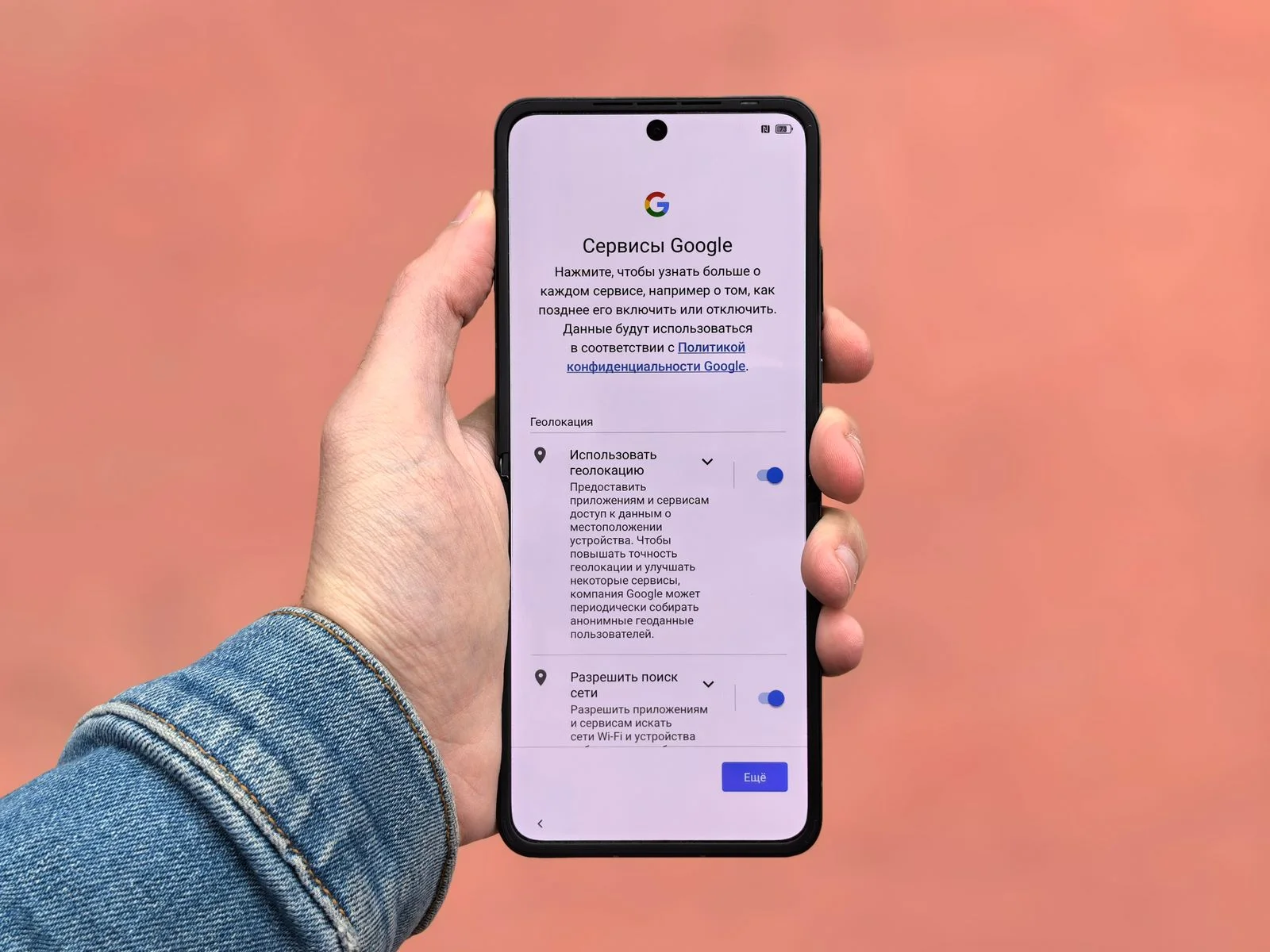
Google announced on November 18, 2026 that the Gemini app was coming to eligible Android Go edition devices. It says the app was reworked to bring the core Gemini experience to phones with less memory. Check the requirements and rollout for the actual device, account and country before comparing experiences. The announcement describes availability for eligible hardware, while the performance and available functions you see also depend on what else the phone is doing. Google's November announcement
Check what is actually available on the phone
Use the phone's ordinary software settings and the official store or support pages to confirm its Android edition and app compatibility. If the option is absent, record the device model and version and check the rollout details before trying changes. Manufacturing variants can differ. The fact that a different unit with a similar name installed the app is weak evidence about yours. Availability can also depend on the account and region, so the actual notice shown on the phone can be useful when checking with support.
Consider the way the phone is used now. It might have a single working home screen, a familiar messaging app and a browser opened only on Wi-Fi. An assistant can join that arrangement without becoming the first destination for every job. Review how the app starts and which capabilities are available. Keep important phone functions reachable through the existing icons as you try the new route. Owners should understand which app will be expected to answer an action and what access it will need to do so.
Inspect the permissions it requests at each stage. A typed prompt and a spoken prompt ask different things of the phone. If an attachment is needed, choose a practice file containing no personal details. Check which account is signed in and whether the operator wants prompts and responses associated with it. Use the app's privacy documentation for the configured account. A simple test with harmless material can give you time to understand those choices before using the tool for a real task.
Set a baseline with an everyday task
Record how you already finish the task. To send a short message, open the chat, draft two sentences and verify the recipient before sending. To plan a short errand, write down the places and compare their hours from sources you trust. Keep the example small enough to repeat. The baseline should include each step you would actually complete. A fast draft does not cover the time needed to check a suggestion or undo a confusing change.
For the assistant trial, ask a bounded question using plain language. A useful prompt can include your own short description and the format you need. For example, “Turn these three reminders into a list I can read while shopping” leaves the phone no need to invent a shop, price or address. Check that each input is reflected correctly. Copy the list to the app where you normally keep reminders and verify it is still available. That shows whether the tool can help with one part of a job and hand it back cleanly.
Test the way the answer reads to you, rather than seeing whether it sounds fluent. If you only need three lines, see how quickly you can reach those lines and whether they can be selected. With spoken interaction, decide whether people nearby can hear what the phone says and whether you want to type instead. For a shared household device, consider who last used it. One person's stored conversations or preferences may not belong in the next person's task.
Notice what changes when memory is tight
Keep two familiar apps open and run the same practice prompt. Switch to a note, return to the assistant and then reopen the document that contains the input. A phone with limited memory may need to reload an app when you return to it. This is visible as a startup screen, a lost scroll position or a form that opens at its first step. App and system behavior varies. The important observation is which app was displaced during the part of the job you want to make easier.
Run the comparison once after a normal restart and again during an ordinary afternoon with the apps you use. Keep account and network conditions similar during each measurement. A freshly restarted phone may behave differently from a device that has handled messages, updates and calls throughout the day. Check the storage available as well. App updates, cached files and downloaded media all need room. Use the platform's ordinary storage view and evaluate large personal files before removing anything.
Then try the same job using your existing notes and browser in a reduced-tab workflow. A helpful assistant might save editing time even when switching back takes a little longer. For another job, keeping a note and citing an original webpage may give a simpler result. The point is to identify what is repeatable with the usual apps present. The phone should keep the information you need while you change tasks, whichever route you choose.
Try the actual network you rely on
Test one harmless request over home Wi-Fi and one using the connection you typically have away from home. App features may depend on connectivity, and a long response can take longer to arrive under congestion. Check which interaction still works if the connection drops while you are reading. The ordinary job should have a fallback you can use when the service is unreachable. A small saved checklist or a browser page made available through documented offline features can cover some needs with little additional work.
If mobile data is limited, inspect the operating system's per-app usage over a period before assuming a particular feature is cheap or expensive. The keyboard, browser and application can each use data separately. Attachments and voice could behave differently from a short typed prompt. Use a test duration representative of your habits and avoid counting a single app update as a daily expense. A small observation over a week is more informative than deciding by how quickly one response appears.
Avoid relying on a generated answer for information that changes. If you want a shop's current hours, verify through the business or an appropriate primary listing. An attractive list of options can still include outdated details. For a route, save the verified destination and directions in the application intended to guide you. The assistant can help phrase a question or organize a set of facts. The handoff matters because the user needs a durable answer after leaving the chat.
Look at text size and input together
Try the chosen task with the system's normal text size and with the setting the owner prefers. The input field, attachment controls and reply area share a small screen. A longer message can push the relevant controls out of immediate view. Confirm where the cursor lands and whether the send action remains reachable when the keyboard is open. During voice input, find the visual indication that recording has ended before the phone is put down.
Compare the first answer with a follow-up. In a long exchange it may take time to return to the original wording. If that wording forms part of the user's record, save it in its original app and make one separate copy of the result. A useful assistant interaction can leave behind a conventional reminder, note or saved message. The independent copy remains easy to find during an app update or a period with limited connectivity.
If voice is the preferred input, test a quiet room and a normal public setting using the same harmless phrase. Background conversation can change the transcription. Correct mistakes in the input before treating a wrong answer as a reasoning failure.
Choose one job to keep
At the end of a week, review the difference between things you tried once and things you returned to without thinking. A store list made from your own text may have been convenient every time. A tool for rewriting personal messages might be better left alone if optional edits took longer to review. Keep the successful job and revisit the other choices after an update or a change of phone. The strongest case for keeping the app is a small action that consistently fits into the rest of your routine.
Write down what made that job work. The prompt, the intended destination and the fallback route can fit on a single short note. If you help someone else install the app, give them room to choose their own task and run the check on their device. Google announced a wider set of phones that can reach the core experience. What makes the expansion meaningful is the ordinary work an owner can finish while keeping the rest of a modest phone available.