Clearer Dialogue on Apple TV Starts With the Room
Use a single scene to compare tvOS dialogue options, captions, speaker placement, and late-night playback before changing the living-room system.
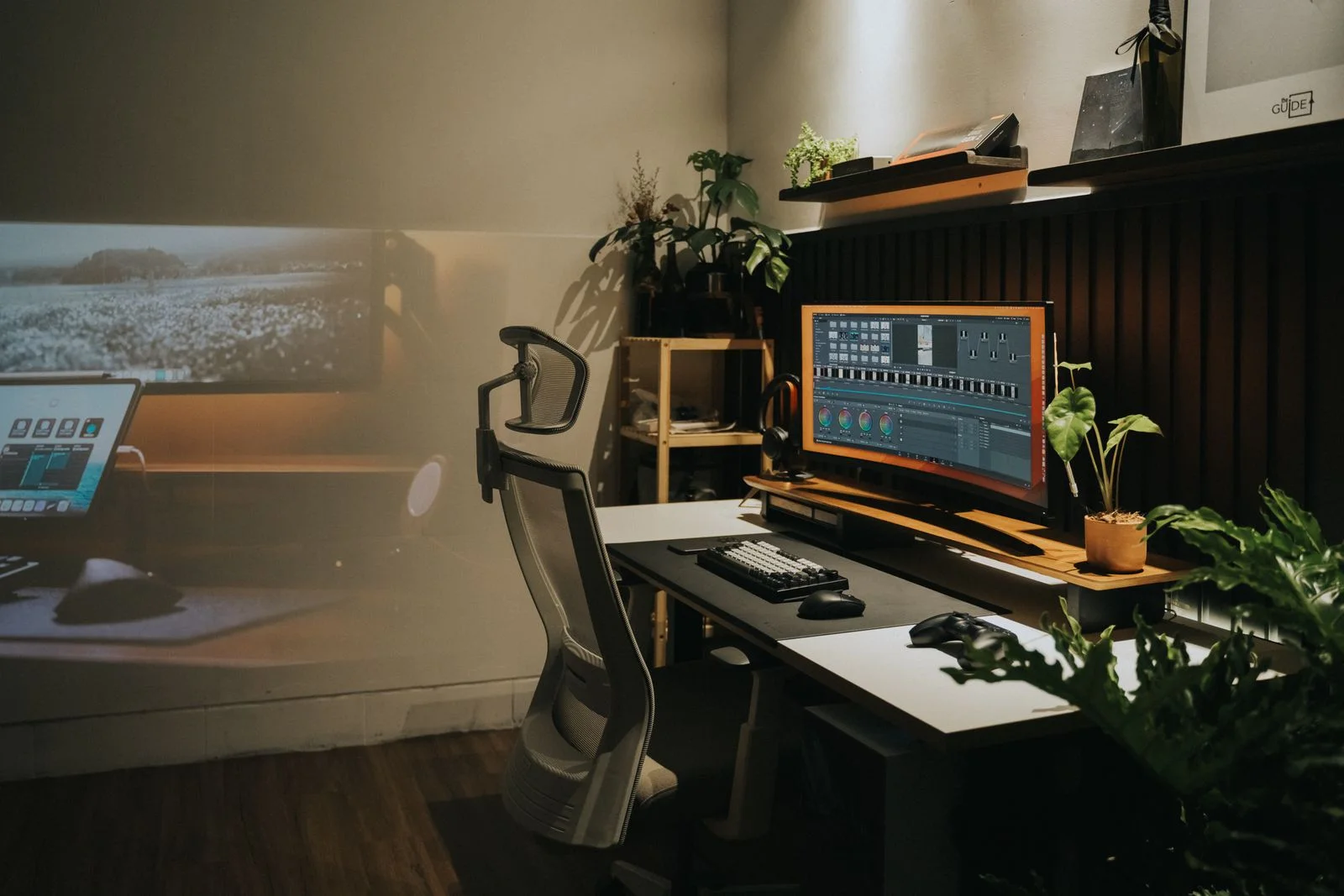
You can turn up a television three times in a scene and still miss the line that explains what happened. The signal got louder, including the rain and the music competing with the voice. Glass, walls, room layout, and the seating position may contribute. Television playback settings can help, but they are easier to choose when you know which problem you want them to solve. Test with an ordinary conversation in an otherwise busy scene and choose a result you can live with for the rest of the episode.
Apple began selling the fourth-generation Apple TV 4K in November 2026 and described additional surround configurations for compatible HomePod speakers. The hardware announcement lists the specific speaker and device requirements. A new box or extra speakers may be interesting for a room built for movies. Dialogue and captions deserve their own attention first, because several useful checks can be done with equipment already in the room.
Keep one troublesome line as a reference
Find a scene containing a quiet sentence, a more confident sentence, and a loud sound or music cue shortly afterward. It can be from a program you have already seen, which makes repeated playback less annoying. Write down the time and the active language track. The same title in a different app, language, or audio format may not produce an identical mix. Keep the first pass ordinary, with the system configured the way you watched yesterday.
Watch from the seat that creates difficulty. If two people use the room, repeat the same short scene from both seats. Furniture can block a direct path from a speaker, and listening at the edge of a wide couch can emphasize different parts of the sound. Confirm the loudest part remains comfortable at the level you choose. When one voice is harder to understand, record which part of the word disappears. Low voices, soft consonants, and speech over music can raise different questions.
Use a second program as a control. News, a spoken tutorial, or an uncomplicated conversation often has clearer foreground sound than a dense drama. If every program is equally hard to understand, look closely at the output and room. If only one title causes trouble, a per-program adjustment or captions might be the smallest long-term change. Testing simply identifies where a difference repeats.
Trace the output before adjusting it
Read the Apple TV audio settings and confirm whether output goes through the television, an external speaker, a receiver, or a set of headphones. The television might apply its own processing to an input. A receiver may report the format it sees and handle the result through a separate listening mode. Write down these settings before making changes. If two products are modifying a signal in different ways, changing them at the same time makes it difficult to identify what helped.
Place a speaker used for voices where it can deliver sound into the room as its manufacturer intends. A unit enclosed by a cabinet edge might send useful energy into a shelf or wall. An existing soundbar can also be partly blocked by a decorative object. A center speaker, where the system uses one, should be aimed in an appropriate direction and operate at a suitable level. Follow any placement and calibration guidance for that model before choosing an electronic boost.
If you use several speakers, run the system's approved setup or check routine after moving one. Confirm the expected speaker channels are audible, and restore a reference mode where available. You can also test from closer to the existing speakers at the same reasonable volume. Speech getting noticeably clearer nearby points toward room and placement questions worth exploring before changing another menu.
Try one audio option at a time
Apple's tvOS playback guide describes playback options including Enhance Dialogue and Reduce Loud Sounds, with availability depending on the title, equipment, and Apple TV model. Dialogue enhancement changes how prominent speech is. Reduced dynamic range changes the relationship between the quiet and loud parts of the soundtrack. They can both make an evening easier to watch, and they address different symptoms.
Start with a dialogue option if voices get lost beside music and effects. Replay the same line without changing the main volume. Then adjust it to a comfortable listening level if needed. See whether someone can follow natural conversation and whether the result changes music or space in a distracting way. A stronger setting may provide immediate clarity and feel tiring over a long scene. Give the preferred result several minutes before saving it as a default.
Try Reduce Loud Sounds when you primarily want to avoid a sudden increase from a chase, musical transition, or closing credits. The setting may let you leave the control alone during a mixed scene. Listen to both the beginning and the end of the sequence. If everything becomes tolerable yet a particular voice still remains difficult, add a dialogue adjustment separately and note what the combination changes. Keep a way to return to the usual setting for daytime listening.
Apple also documents an accessibility setting that can add a voice isolation option on supported arrangements. Check the requirements and treat that mode as another choice in the same comparison. An occasional line may become clearer, and the rest of the mix may change in a way that matters to somebody else on the couch. Ask both viewers rather than treating the louder output as a shared preference.
Set captions for the person reading from the far seat
Turn captions on for a scene and verify that the option is available in your app and for that program. A subtitle can focus on spoken words. Closed captions may also identify speakers, music, or relevant sounds, depending on the available track. Choose the type and language the actual viewer wants. It can help to read in both a dark scene and a bright outdoor scene, since the best-looking type on one background may disappear on another.
Check size and background at the viewing distance. Large text can be easy to read while covering an important visual clue. A dark background or outline can improve readability without requiring an extreme size. Sit where you will normally sit and read a whole exchange, including one line that stays up briefly. Apple describes caption-style controls in supported playback surfaces. Some apps draw captions themselves, so confirm whether the system setting carries into your regular services.
Decide whether the household wants captions all the time, on demand, or only for specific content. The same playback guide documents ways to display subtitles during recent playback or while muted in supported circumstances. Practice the control with the exact remote. A person who can restore a missed line without pausing to find an accessibility menu has a useful option during a group viewing. Learn where the setting could behave differently before depending on it.
Check late-night use on a separate evening
A room with sleeping people nearby has a different goal from daytime viewing. Try the quietest satisfactory speaker setup first. Ask someone already present whether the sound carries to a relevant room. Have them listen from an ordinary place instead of standing with an ear to the wall. A brief drop in volume can help a great deal, and dialogue enhancement or captions may eliminate the urge to turn it back up.
Headphones are another route when the equipment supports them and the listener does not need shared room audio. Connect according to the platform's instructions and test whether audio comes from the expected place. If you need to hear a visitor, an alarm, or something from another room, choose the appropriate setup and remain aware of it. Do not assume the living room speakers will resume in exactly the same state after disconnecting. Verify the return path once during a planned test.
Switch from a quiet drama to a different app. A service might remember its own subtitle setting, or a trailer might sound unexpectedly prominent. Confirm how to change the level or stop it without searching in the dark for a distant remote. Familiar controls are a practical reason to favor an arrangement even if another configuration sounded marginally better in the first demonstration.
Keep the video source visible in this record. The television's own streaming app can use different captions and processing from a box connected to an HDMI port. A setting that fixes the same program on one input may be entirely absent when you change sources halfway through the evening.
Leave the regular viewing setup easy to restore
Save a short record for the home. Include the normal speaker output, which setting to change at night, and the caption route in the streaming app you most often use. Use whole lines that someone else can follow and label the devices as they appear in the menu. If remote assistance is needed, the note should make it possible to describe the current state without moving a cabinet or reading every item on the screen.
Settle on a combination by watching a whole program once. If everybody understood the relevant speech and nobody had to chase the volume, the fix did its job. A room does not have to reproduce every detail of a soundtrack at once to make a story easy to follow. The preferred setup is the one that quietly solves the persistent trouble and leaves the household free to watch.